Online Store Accessibility Checklist for Shopify and WooCommerce
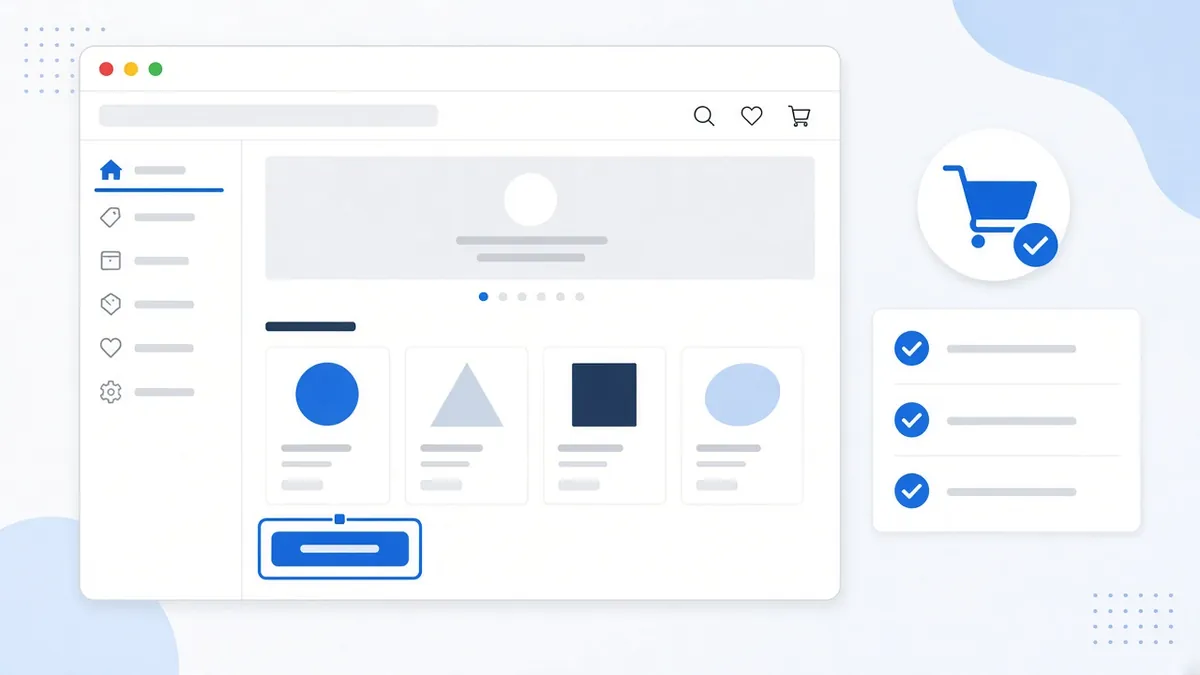
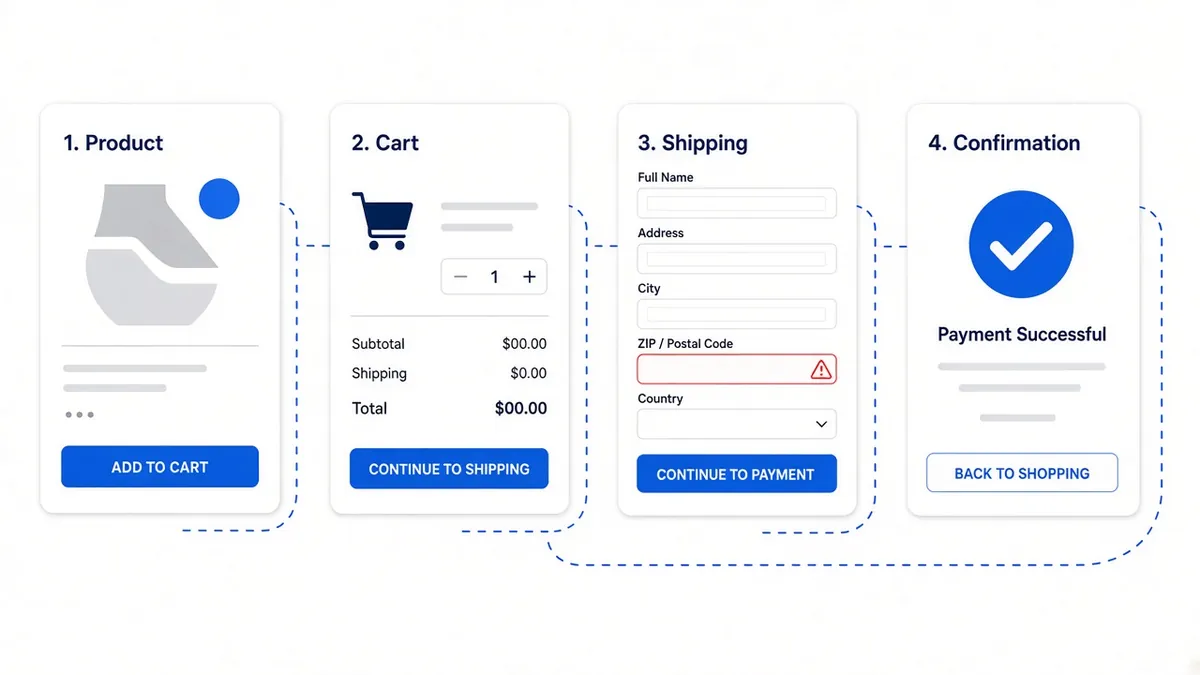
If you sell online, your store is one long path: a visitor finds a product, picks a size or color, adds it to the cart and pays. Every step has to work for people who use a screen reader, navigate with a keyboard, zoom their screen or have trouble telling colors apart. When one step breaks, the sale stops there.
This checklist walks through the parts of a Shopify or WooCommerce store that cause the most trouble and what to look for in each. It is written for store owners, not developers, and it is general information, not legal advice.
Why online stores get extra attention
Stores are some of the most visited small business sites, and they have the most moving parts. EcomBack's 2025 annual report counted 3,948 ADA website lawsuits filed that year. By platform, 1,318 cases (33.38%) involved Shopify sites and 808 (20.47%) involved WordPress sites, which includes WooCommerce stores. By industry, lifestyle, fashion, clothing and apparel ranked second with 1,025 cases, behind restaurants.
Those numbers do not mean Shopify or WordPress are inaccessible. The same report notes that results usually depend on the theme, custom code, apps and content a store adds, not the platform itself. That is good news, because it means most fixes are within a store owner's control. For the bigger picture, see our post on ADA website lawsuits by the numbers.
1. Start with your theme
Your theme sets the color contrast, headings, menus and focus outlines for every page, so it is the single biggest lever you have.
- Shopify: Shopify's help center has an "Accessibility for themes" page with guidance on contrast, alt text, slideshows, video and keyboard support. Its developer guide lists accessibility best practices for theme builders. Both are based on WCAG, and both say that following them alone does not make a store fully accessible.
- WooCommerce: WooCommerce says it uses WCAG as its benchmark and publishes accessibility statements and conformance reports for the core plugin. On the WordPress side, the theme directory has an "Accessibility Ready" tag for themes that passed an extra accessibility review.
Before you switch or customize a theme, open a demo store and press Tab through the home page. You should see a clear outline on every link and button, in a logical order, with nothing hidden behind sticky headers. WCAG 2.2 added criterion 2.4.11 (Focus Not Obscured) for exactly that last problem.
2. Product images and media
- Write real alt text. WCAG 1.1.1 (Non-text Content) asks for a text alternative for meaningful images. "Navy wool crew-neck sweater, front view" helps a screen reader user decide; "IMG_4412" or the product name repeated five times does not. Decorative images can have empty alt text.
- Do not hide key details in pictures. Sizing charts, ingredient lists and sale terms posted only as images should also appear as text.
- Tame carousels. Hero slideshows that rotate on their own need a pause control, and arrows that work with a keyboard.
- Caption videos. Product demos and how-to clips need captions, and autoplaying video should start muted or not at all.
3. Variants, filters and search
This is where many stores quietly break. Size and color pickers are often built as styled boxes that look like buttons but cannot be reached with a keyboard or announced by a screen reader.
- Color swatches need a text name, not just a color. WCAG 1.4.1 (Use of Color) says color cannot be the only way information is shown, so mark "sold out" with words or a symbol, not only a gray tint.
- Filter checkboxes and price sliders should work with Tab, arrow keys and Enter.
- When a filter updates results without reloading the page, announce it. WCAG 4.1.3 (Status Messages) covers messages such as "24 products found" or "Added to cart" that should be read aloud without moving focus.
- Keep the search box labeled, not just marked with a magnifying glass icon.
4. The cart
- Quantity buttons need accessible names such as "Increase quantity," not just "+" and "−" symbols.
- Slide-out cart drawers should move focus into the drawer when they open, trap it there while open and return it when closed. They should also close with the Escape key.
- Remove buttons should say what they remove, such as "Remove navy sweater."
- Totals, shipping estimates and discount messages should update in text that screen readers can reach.
5. Checkout and accounts
Checkout is the most important form on your site. Several WCAG criteria line up with it closely:
- Visible labels on every field, not placeholder text that disappears.
- Autofill support (WCAG 1.3.5, Identify Input Purpose). Proper autocomplete attributes let browsers fill in name, address and card details, which helps people with motor or memory disabilities and speeds up everyone else.
- Clear error messages that name the field and say how to fix it, in text rather than a red border alone.
- A chance to review (WCAG 3.3.4, Error Prevention for legal and financial data). Before an order is final, shoppers should be able to check and correct it.
- Easier sign-in (WCAG 3.3.8, Accessible Authentication). Allow paste and password managers, and avoid puzzles that rely on memory. A guest checkout option helps too.
Hosted checkouts from Shopify or payment providers handle much of this for you, but your theme, custom fields and checkout apps can still add barriers. Test the full path, not just your pages.
6. Apps and plugins you add
Pop-ups, review widgets, chat bubbles, loyalty badges and upsell apps each inject their own code. One poorly built email sign-up pop-up can block the whole page for a keyboard user. Before you install an app, check whether the vendor publishes an accessibility statement or conformance report, and after you install it, retest the pages where it appears. Remove apps you no longer use.
An accessibility widget can give shoppers extra controls such as larger text or higher contrast, which some visitors find helpful. It does not fix the underlying code, though. EcomBack reported that 983 of the 2025 lawsuits (24.90%) involved sites that used accessibility widgets. We explain the difference in can a widget alone make a site accessible?, and our compare pages describe what different services cover.
How to test your store in 30 minutes
- Run an automated scan of your home page, a collection page, a product page and the cart. This catches missing alt text, low contrast and unlabeled fields fast. A free scan is a good first pass.
- Buy something with only a keyboard. Use Tab, Shift+Tab, Enter, Space and arrow keys to pick a variant, add to cart, open the cart and reach payment.
- Zoom to 200% and repeat on a laptop, then repeat on a phone.
- Try a screen reader on one product page. VoiceOver is built into Apple devices and NVDA is free for Windows.
- Write down what broke and fix the checkout and product page issues first.
Automated tools find a meaningful share of issues, but not all of them. The keyboard and screen reader steps catch problems no scanner can judge, such as a confusing order of steps. Our WCAG 2.2 checklist in plain English and 10 quick fixes post go deeper on individual criteria.
Keep it going after launch
Stores change constantly: new products, seasonal banners, theme updates and new apps. Make a short accessibility check part of every change. Add alt text when you add a product, retest the cart after an app install, and rescan your main pages monthly. Publishing an accessibility statement with a contact method gives shoppers a way to tell you when something still gets in their way, so you can fix it quickly.
A quick legal note
The Department of Justice has said that businesses open to the public should make their websites accessible to people with disabilities, and many courts apply the ADA to online stores. The rules vary by location and are still developing. This post is general information, not legal advice; for questions about your business, talk with a qualified attorney.
See where your store stands
You do not have to fix everything at once. Start with the pages where shoppers decide and pay: product pages, filters, the cart and checkout. To see what an automated check finds on your store today, run a free scan and work toward a better score one fix at a time.
Frequently asked questions
Is Shopify or WooCommerce more accessible?
Neither platform decides it alone. Both base their guidance on WCAG, and accessibility depends mostly on the theme, apps, custom code and content you add. Test your own store rather than relying on the platform name.
Which store pages should I fix first?
Focus on product pages, size and color pickers, filters, the cart and checkout. These are the steps every shopper must complete, so a barrier there stops the sale.
Does a hosted checkout take care of accessibility for me?
It helps, but it does not cover everything. Your theme, custom checkout fields, pop-ups and apps can still add barriers, so test the whole path from product page to order confirmation.
Will an accessibility widget fix my store?
A widget can give shoppers helpful display controls, but it does not change the underlying code. EcomBack reported that about a quarter of 2025 ADA website lawsuits involved sites using widgets. Fixing the store itself is still the main work.
How often should I check my store?
Rescan your main pages at least monthly, and retest after any theme update, new app or major product launch. This is general information, not legal advice.
Comparing tools? See our accessibility widget comparison.
Sources
- EcomBack: 2025 Annual ADA Website Accessibility Lawsuit Report
- Shopify Help Center: Accessibility for themes
- Shopify.dev: Accessibility best practices for Shopify themes
- WooCommerce: Accessibility at Woo
- WordPress.org: Accessibility Ready themes
- W3C: Understanding WCAG 2.2 SC 1.1.1 Non-text Content
- W3C: Understanding WCAG 2.2 SC 1.3.5 Identify Input Purpose
- W3C: Understanding WCAG 2.2 SC 1.4.1 Use of Color
- W3C: Understanding WCAG 2.2 SC 2.4.11 Focus Not Obscured (Minimum)
- W3C: Understanding WCAG 2.2 SC 3.3.4 Error Prevention (Legal, Financial, Data)
- W3C: Understanding WCAG 2.2 SC 3.3.8 Accessible Authentication (Minimum)
- W3C: Understanding WCAG 2.2 SC 4.1.3 Status Messages
- ADA.gov: Guidance on Web Accessibility and the ADA
Disclaimer: This article is general information, not legal advice. Laws and dates can change. A toolbar alone doesn't make a website conform; we help reduce risk and improve access.